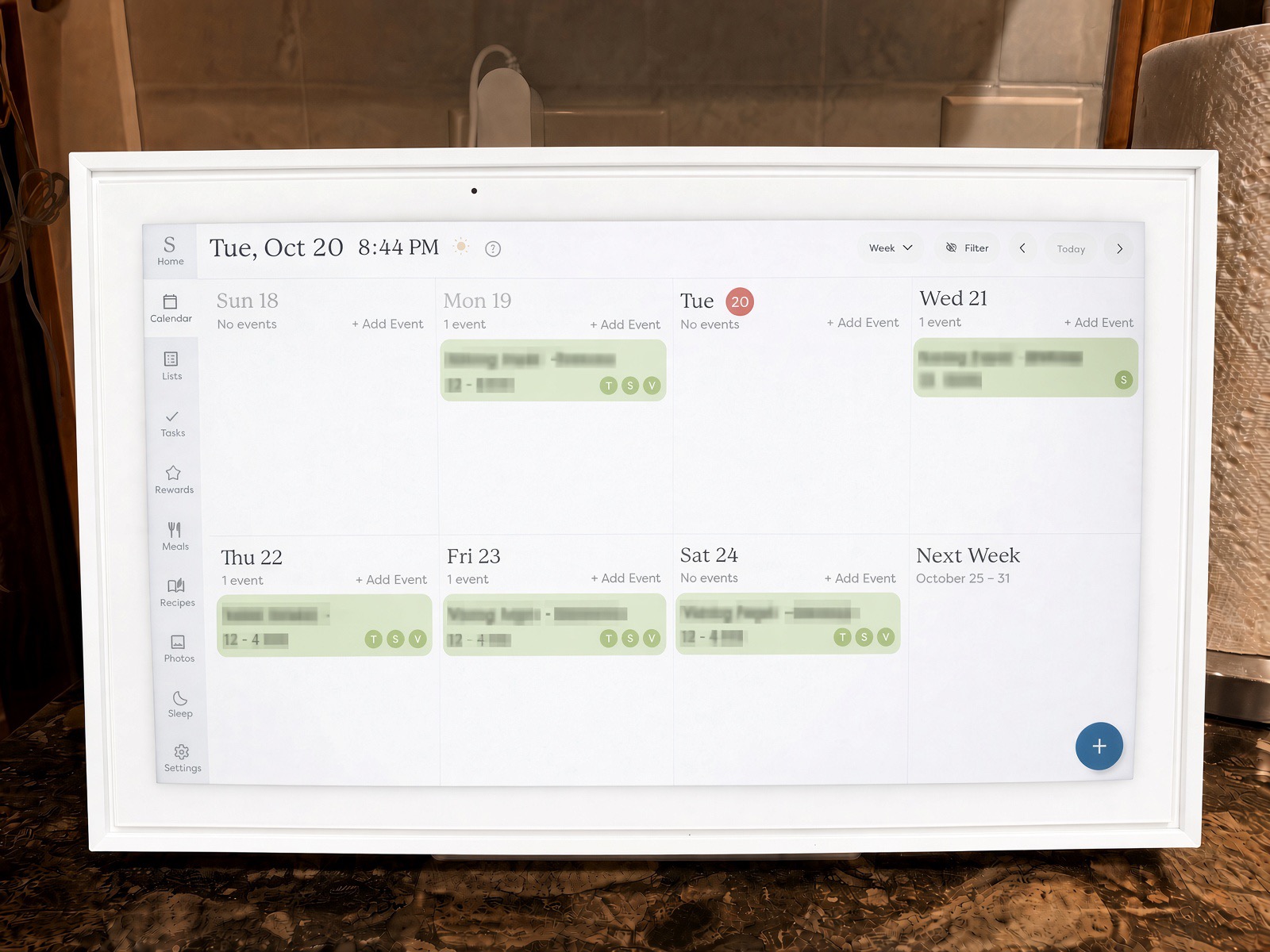
My Skylight Calendar review starts with a promise made to my mother. A promise kept.
Pap Steve here from papstevereviews.com. When my mom passed in 2023, one of her dying requests to all of us kids was simple: make sure Dad is taken care of. For 60-plus years of marriage, Mom ran that household. She kept the calendar, the grocery list, the phone numbers, all of it. She knew Dad couldn’t manage it on his own, and she was right.
So this is a family affair. I live several states away, so I handle Dad’s finances and anything else that can be done from a distance. My brother and sister-in-law live near Dad and carry a lot of the day-to-day. And every one of us is a grandparent now, with busy schedules and grandkids of our own. We want to take some of the load off my brother and sister-in-law so they can live their own lives too.
Dad doesn’t drive anymore. Visiting Angels aides take him to all his appointments. That’s a lot of moving parts: aides on different shifts, appointments, groceries, family visits, and me trying to keep it all straight from a few states away. Back in May 2026, I bought Dad a Skylight Calendar 15-inch and the Calendar Plus subscription, all the bells and whistles. Here’s how it’s gone.
Skylight Calendar Review: Why We Chose It
I didn’t need another gadget for Dad to figure out. I needed one place, right there in his kitchen, where everybody could see what’s going on, and where I could change things from my phone in South Carolina.
The Skylight is a 15-inch touchscreen for the counter or the wall. It shows one shared calendar for everybody. It also holds chore lists, grocery lists and meal plans. It syncs with Google, iCloud, Outlook, Cozi and Yahoo calendars, and everybody who’s been invited can add and change things in the Skylight app. Change something on my phone, and it shows up on Dad’s counter.
I’d seen Skylight ads pop up on my social media feeds. Once I actually read up on it, things just clicked. It made sense that this would be a valuable tool in our care arsenal.
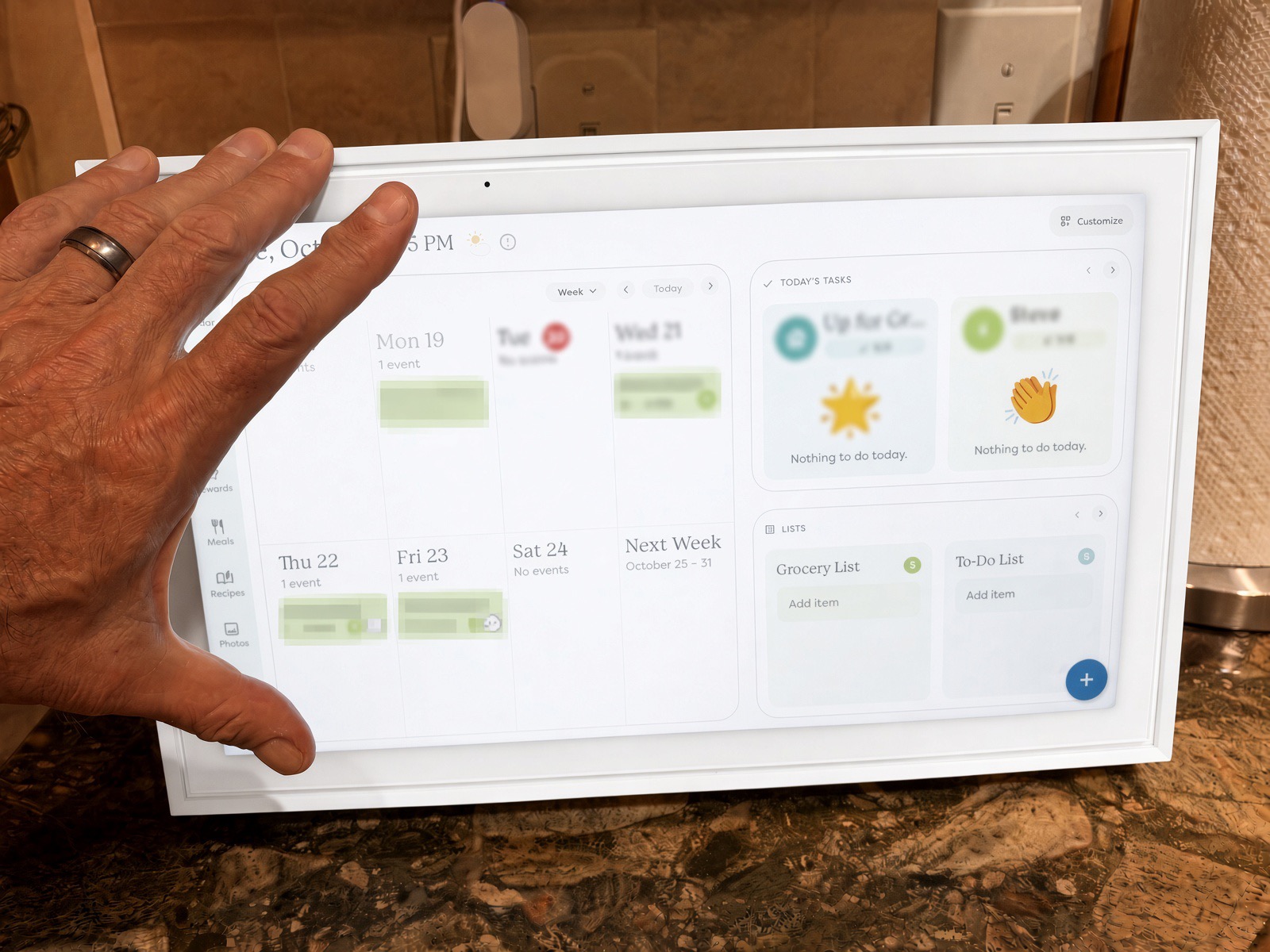
The Setup: Plug It In, Connect the Wi-Fi
I set it up myself in less than ten minutes. Now, in fairness, Pap Steve works in technology and is a little on the savvy side (that’s how this blog happened, after all). But honestly, the average person would have no problem getting it up and running in under 15 minutes. Setup is about as simple as these things get. You fold out the stand, plug it in, connect it to Wi-Fi, and link it to the Skylight app. Then you invite the people who need access.
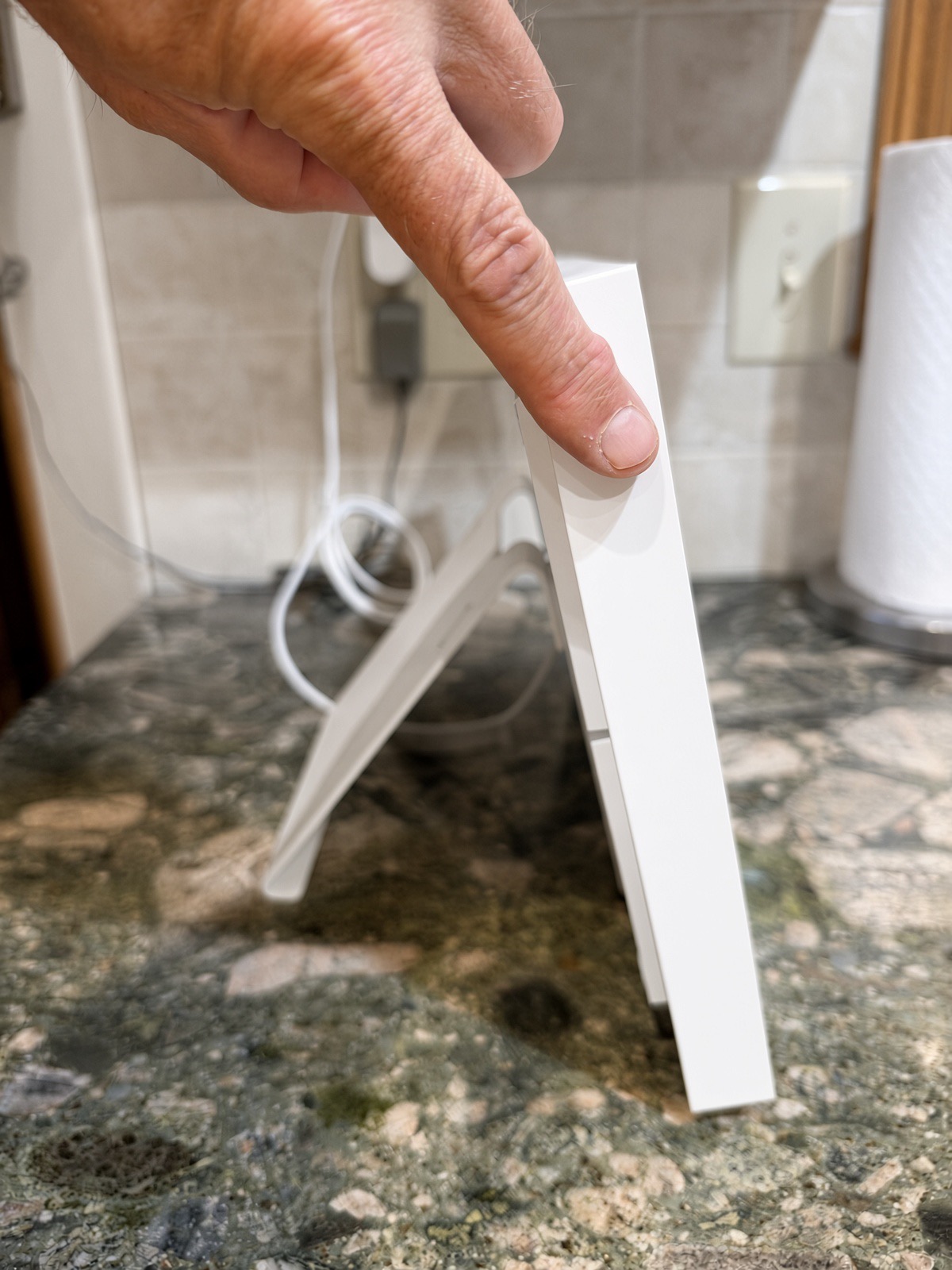
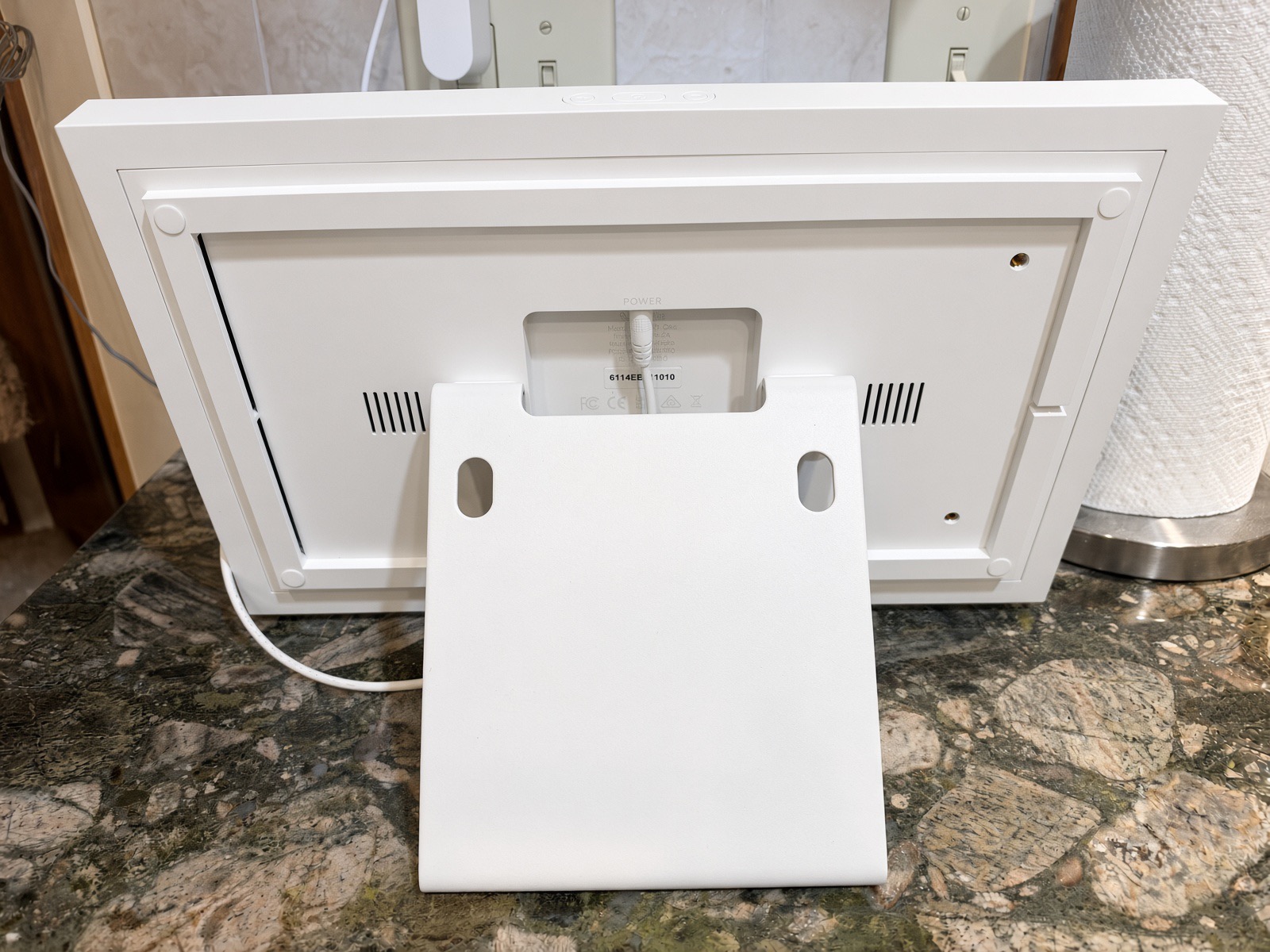
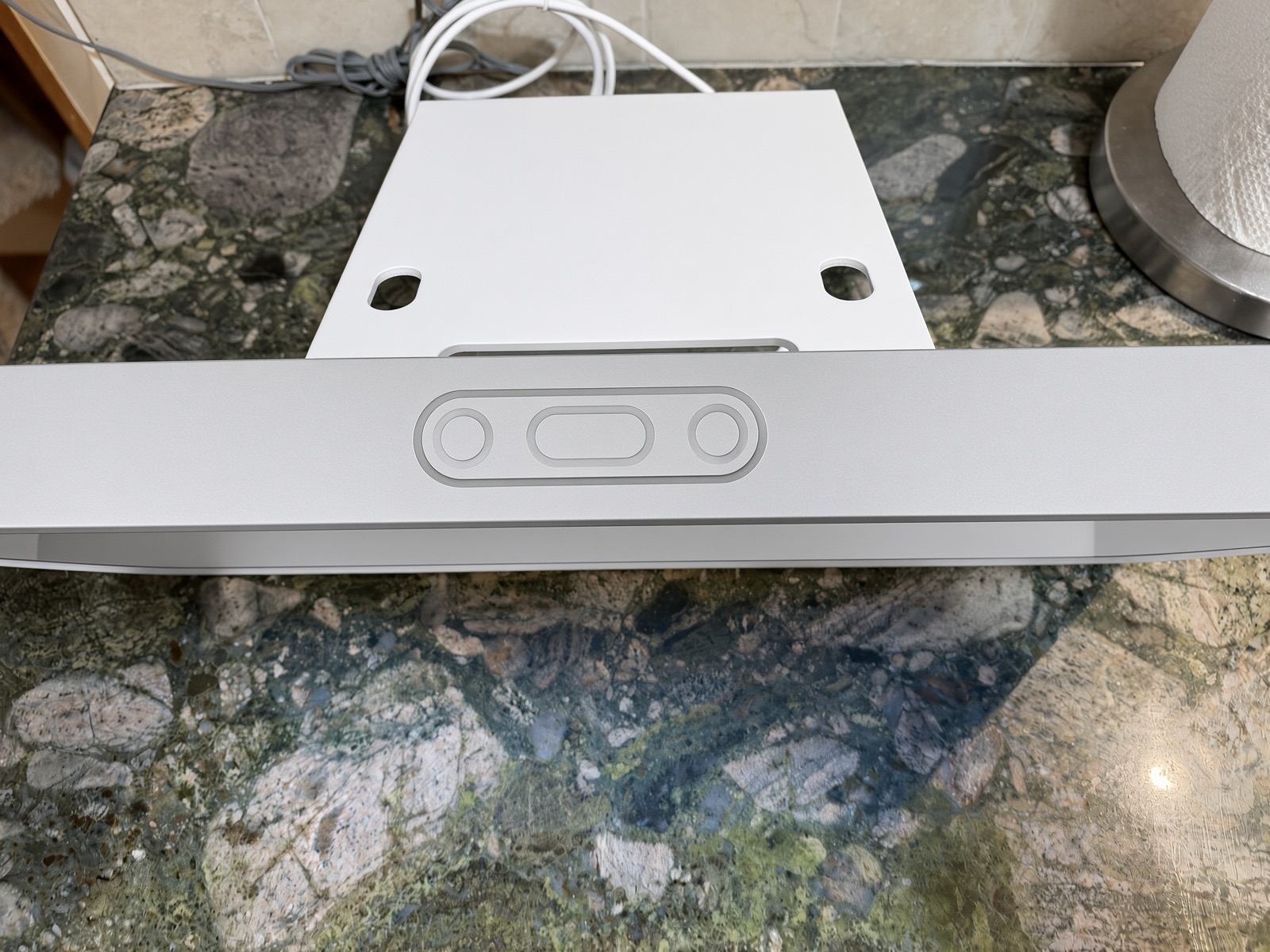
The stand on the back folds out so it sits at a nice angle on the counter, and the power cord plugs into the back. It comes with a wall mount too, if you’d rather hang it. Ours sits on the kitchen counter, right where Dad and the aides see it every day.
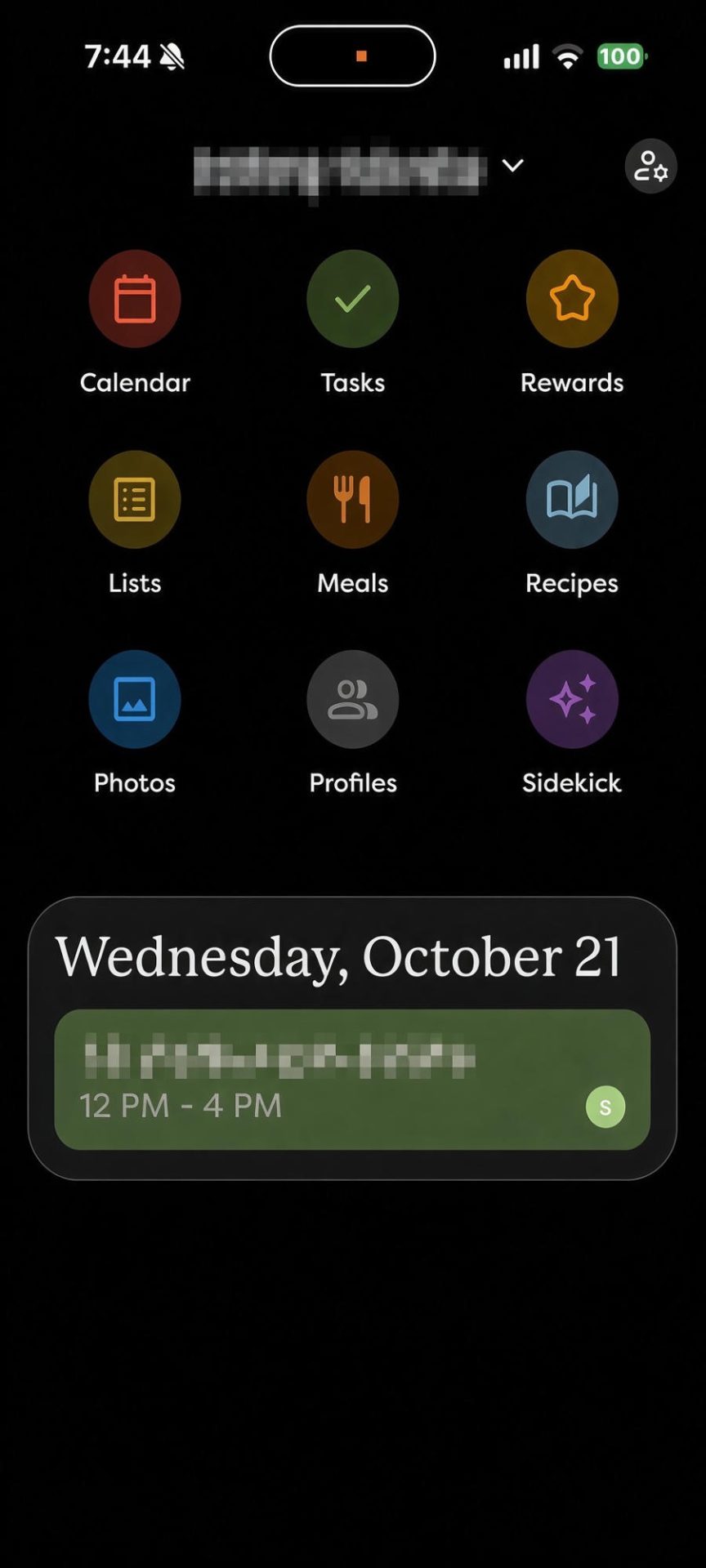
In our family, everybody is on it: me, my sister-in-law, the rest of the family, and the Visiting Angels aides. Each person gets a color-coded profile, so you can tell at a glance who an event or task belongs to.
What We Use It For
The calendar
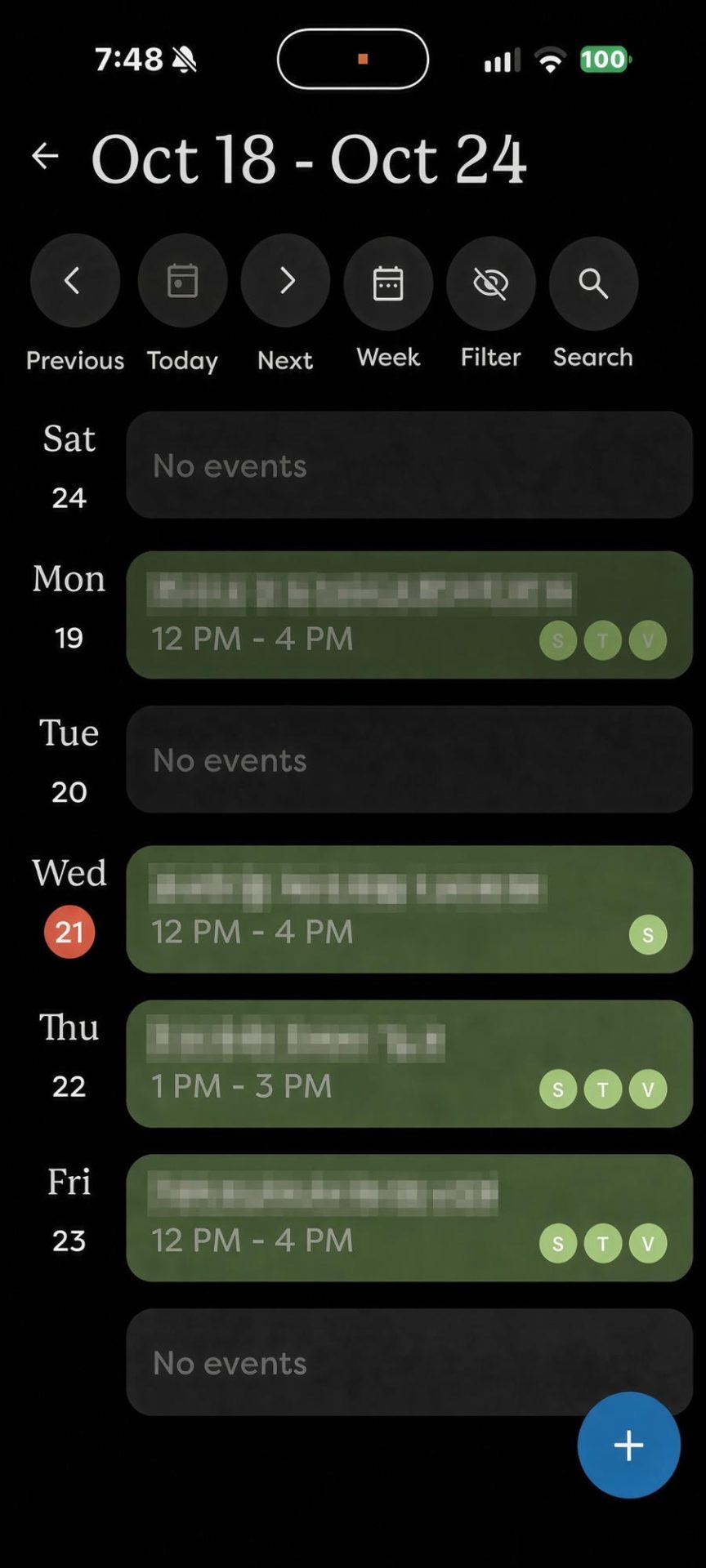
This is the big one. Every appointment and aide shift goes on the calendar, tagged with who is involved. The aides can look at the counter and see what’s coming up this week, and I can see the same thing on my phone from several states away.
Lists: groceries, to-dos and emergency contacts
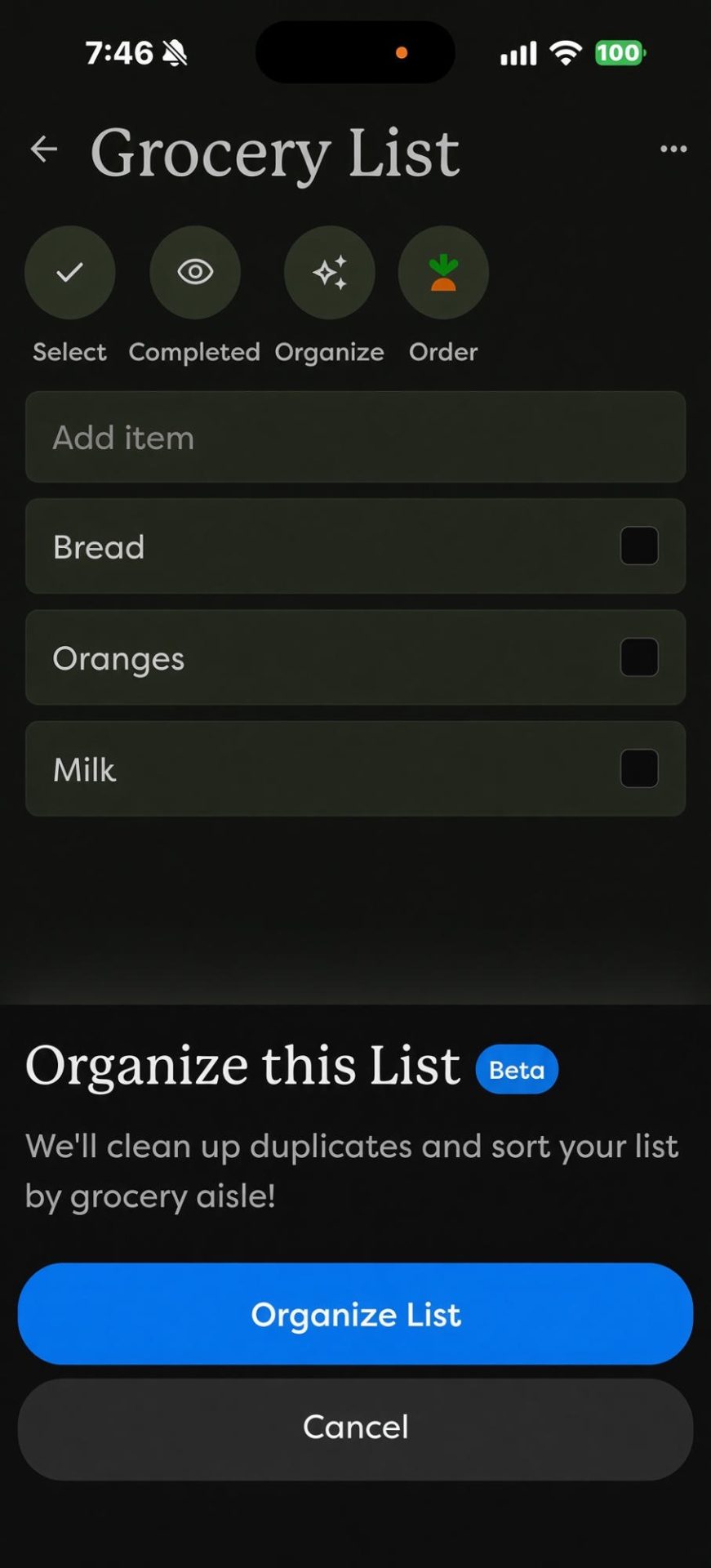
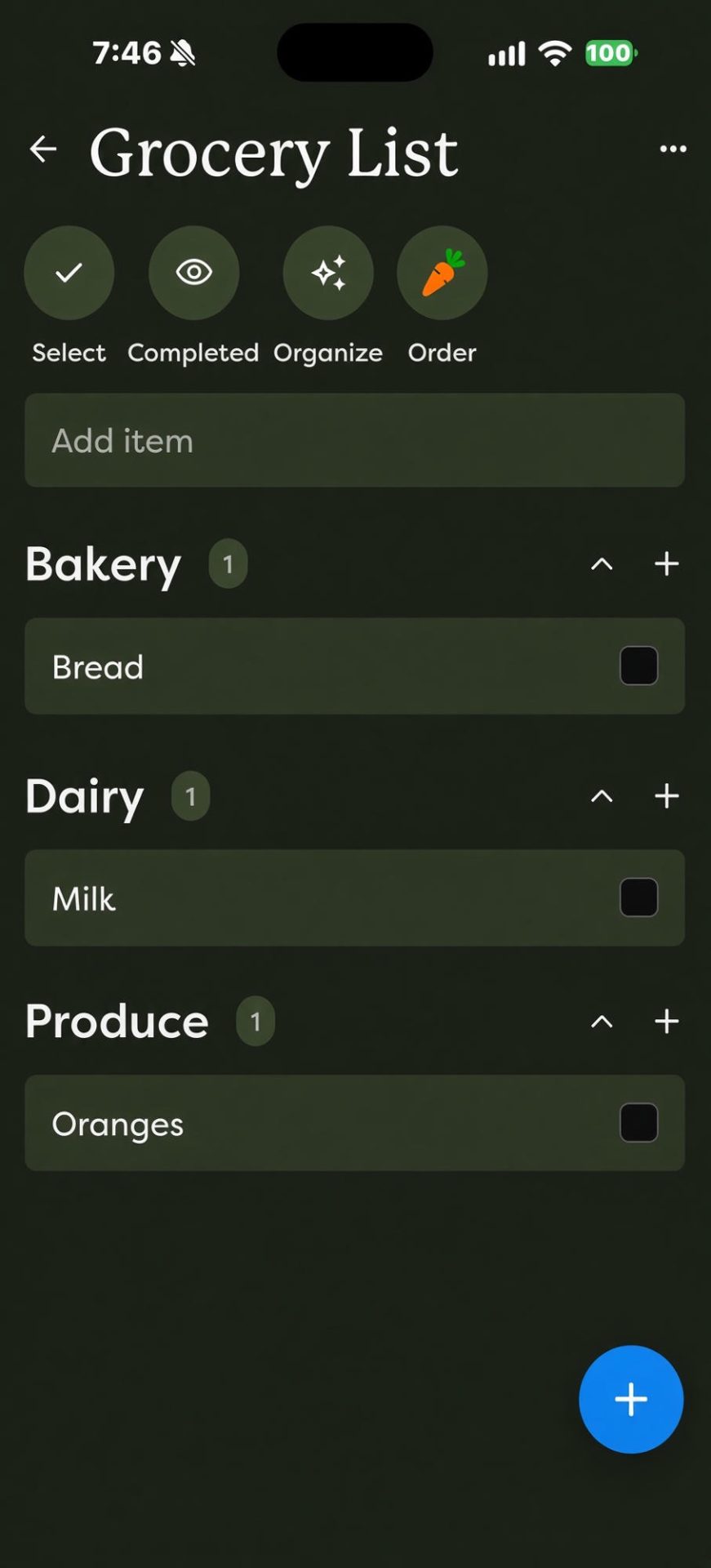
We keep a grocery list, a to-do list and an emergency contact list. Anybody can add to the grocery list, and whoever does the shopping checks things off. With Plus, there’s an “Organize” button that cleans up duplicates and sorts the list by grocery aisle.
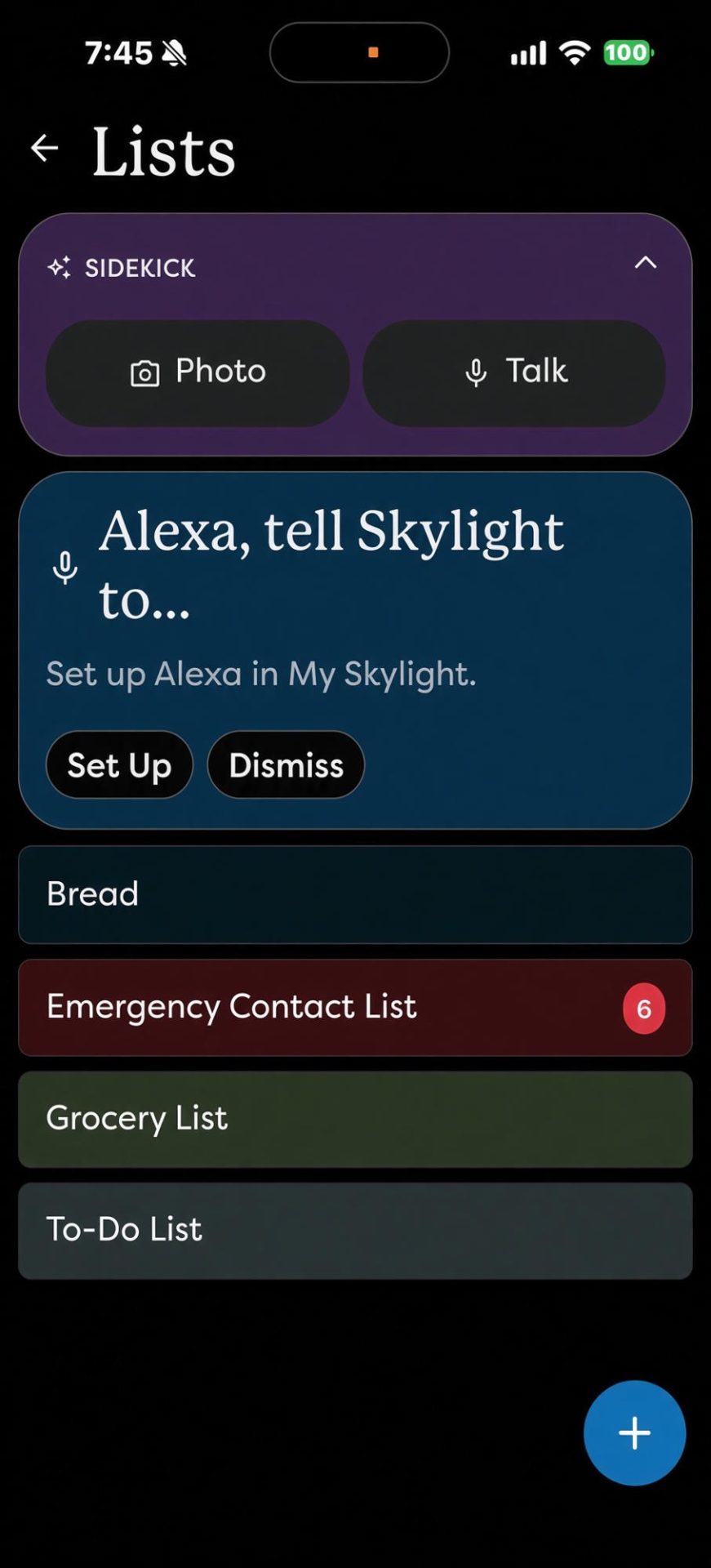
The emergency contact list is the one that lets me sleep at night. If something happens, the aide doesn’t have to dig through a drawer for phone numbers. They’re right there on the counter.
Meals and recipes
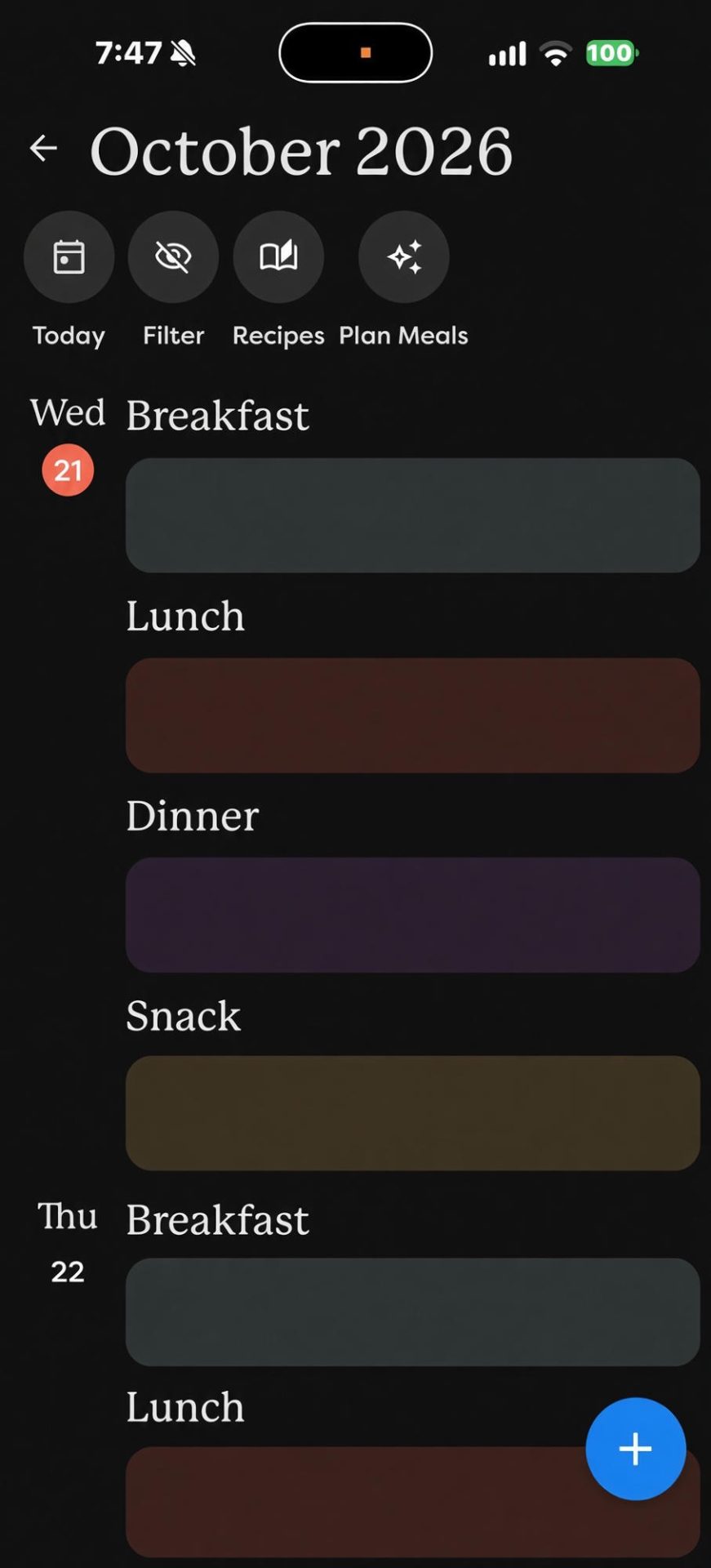
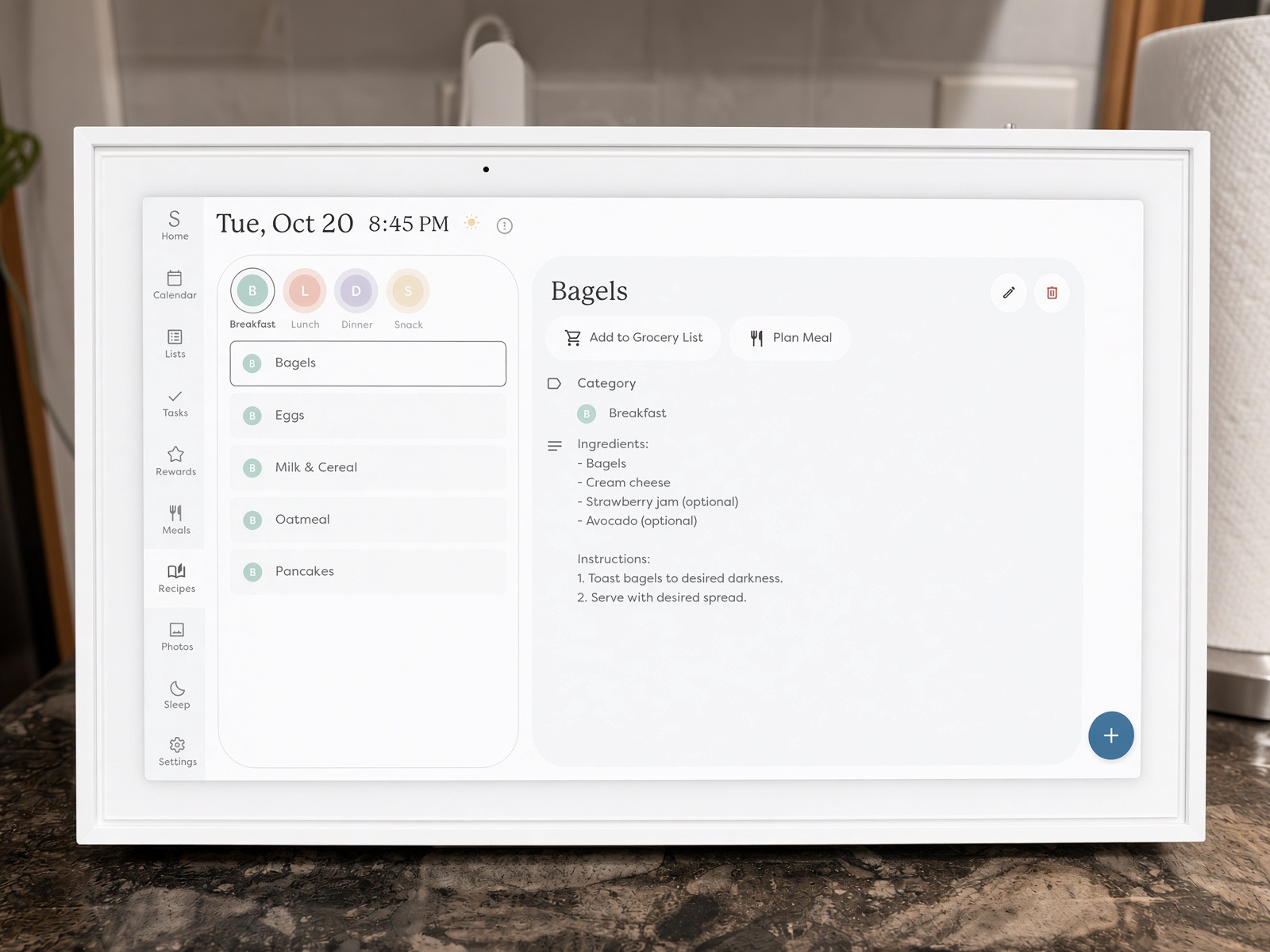
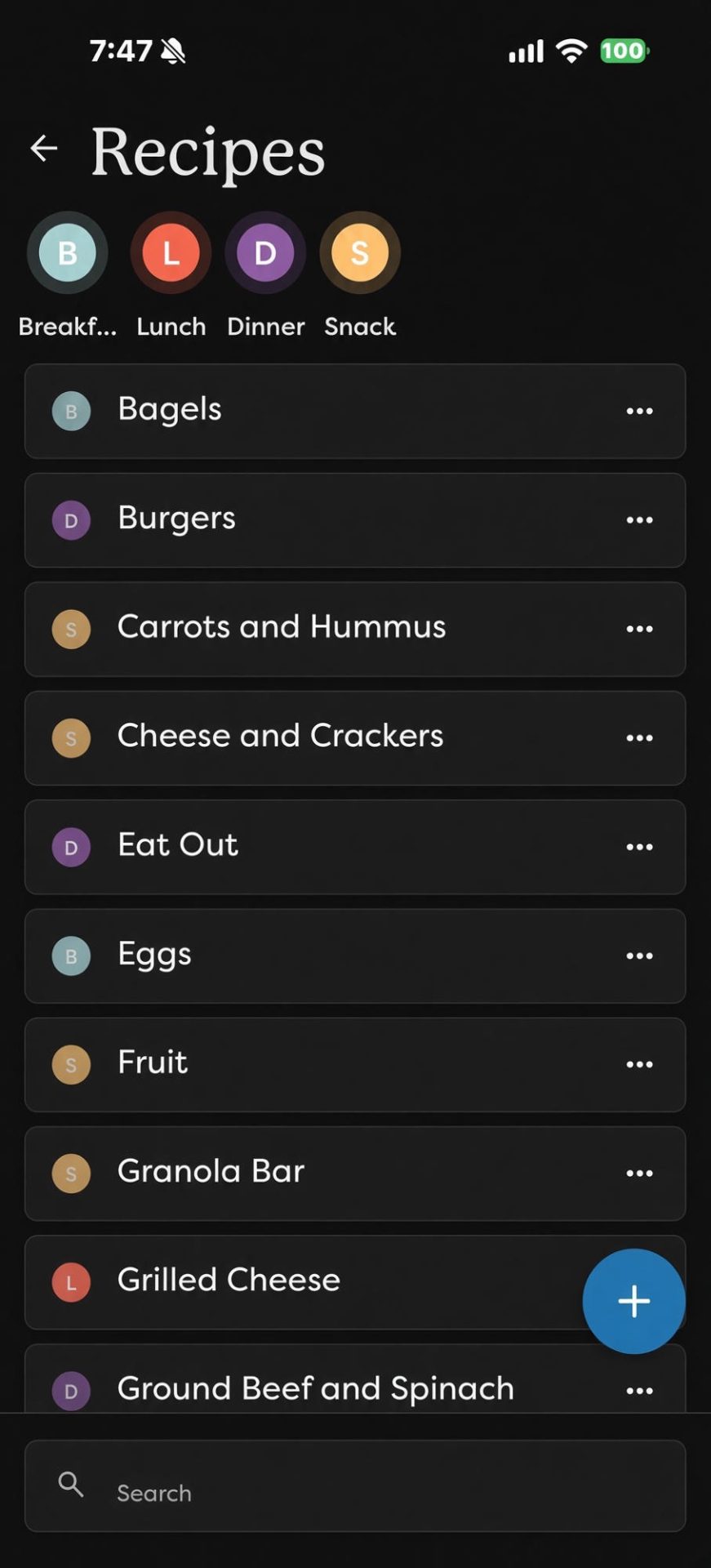
With Plus, you can plan breakfast, lunch, dinner and snacks for the week and save recipes. That helps the aides know what’s on the menu, and it helps whoever is shopping. You can send a recipe’s ingredients straight to the grocery list.
Sidekick (the AI helper)
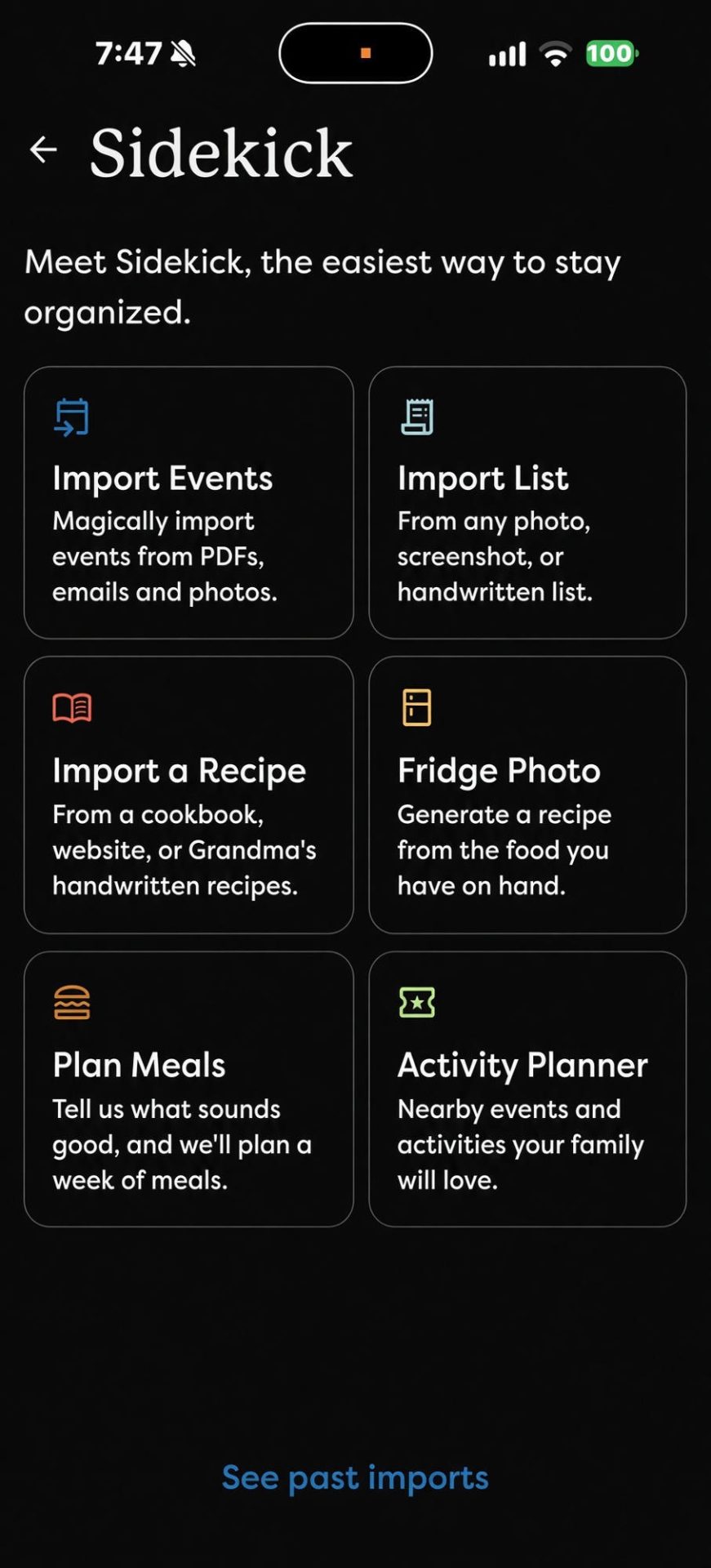
Sidekick comes with Plus and lives in the app. You can snap a photo of an appointment card or a printed schedule, forward an email or PDF, or just talk into your phone, and it drafts the calendar events for you. It can do the same for lists and recipes. You check the draft and tap to add it. For a son keeping track from a distance, that saves a lot of typing. Full disclosure: we haven’t put Sidekick to work yet, so I don’t have an opinion on it yet. It seems to have a lot of potential, though, and I’ll be exploring it the next time I visit Dad. If you’re a caregiver using Sidekick, tell me in the comments how it’s working for your family. I’d love to hear it, and I might just give it a try.
Ways We (and Other Caregivers) Use It
I went looking for how other families caring for aging parents use their Skylight, and I checked each idea against Skylight’s own help pages so I’m not promising anything it can’t do. Here are the good ones:
- Aide routines and chore charts. Give the aides a profile and set up repeating routines for morning, afternoon or evening. Chores can be timed, and unfinished ones roll over to the next day, so nothing quietly falls through the cracks between shifts.
- A shift handoff list. Make a list just for notes between aides and family: what happened today, what needs doing next. Everybody sees it on the counter and in the app.
- A doctor question list. Keep a running list of questions for the next appointment. Anybody in the family can add to it, and the aide can pull it up before they head out the door.
- A start-of-the-day check. One family on Skylight’s Reddit was advised to make a recurring daily event as a reminder to look at the calendar. It helps build the habit.
- Day and date at a glance. The screen shows the day, date, time and weather in big letters. Families caring for a parent with memory trouble say a single place to check “what’s today?” can be reassuring.
- Family photos on the screen. With Plus, the calendar turns into a photo frame when nobody is using it. Everybody can upload pictures from the app, so Dad sees the grandkids and great-grandkids all day.
- Lock it so nothing gets changed by accident. Parental Lock puts a PIN on adding or editing events and tasks on the device. Folks can still look, but the schedule stays put.
- Turn it off at night. Sleep Mode turns the screen off on a schedule so it’s not glowing in the kitchen all night.
- Treat it as a caregiver tool first. Several caregivers in dementia and caregiving groups said it works best for coordinating the family and the aides, not as something the parent has to learn. That matches our experience. And here’s the part that surprised me: Dad actually uses it himself. We enter all the information, and he just views it. Every morning he reads the day’s events so he knows what the day holds. With early onset dementia, it really does seem to help keep him centered.
One honest note: other Skylight Calendar reviews say not to count on it to sound an alarm for a task. It’s a visual checklist, not a pill dispenser. For medications, follow the doctor’s and pharmacist’s instructions and use a proper system. The Skylight can show the routine; it shouldn’t be the only safeguard.
Pap Steve’s Tips
- Give every aide and family member their own profile and color. It makes “who’s doing what” obvious at a glance.
- Put the emergency contact list on the screen. Keep it current, and tell every new aide where it is on day one.
- Snap a photo of appointment cards with Sidekick instead of typing them in. Double-check the date and time before you save it.
- Turn on Parental Lock once things are set up, so nothing gets deleted by a stray tap.
- Load up the photo screensaver with family pictures. Get the grandkids to send some.
- Set Sleep Mode for overnight hours.
- Check the Wi-Fi first. It needs a steady home Wi-Fi connection. If the internet goes down at Dad’s house, the updates stop.
- Walk each new aide through it once. Ten minutes up front saves a lot of phone calls later. Toss the paper. Every time an appointment card comes home, put it in the calendar that same day and throw the card away. Paper is how things got lost in our house.
Specs at a Glance
- Model: Skylight Calendar, 15-inch, white
- Screen: 15-inch Full HD touchscreen (1920 x 1080)
- Mounting: fold-out countertop stand; wall mount included
- Calendar sync: Google, iCloud, Outlook, Cozi and Yahoo
- Free features: calendar, tasks and chores, lists, mobile app for the whole family
- Calendar Plus: Sidekick and Magic Import, photo and video screensaver, meal planning, rewards
- Needs: home Wi-Fi and the Skylight app
- Price: check current price; Calendar Plus is an extra yearly or monthly subscription
Who It’s For (and Who Should Skip It)
It’s for you if you’re one of several people sharing care for a parent, especially if somebody is far away, and you need the family and the aides on the same page. It’s a good fit when there are lots of appointments, aide shifts and errands to juggle, and when the parent’s house has reliable Wi-Fi.
Skip it if there’s no dependable Wi-Fi where your parent lives, if you need something that sounds alarms for medications, or if nobody in the family wants to keep it updated. A calendar is only as good as the people filling it in. And if you don’t want another subscription, know that the best extras live behind Plus.
Cons (Keeping It Real)
- The subscription. The photo screensaver, meal planning, Sidekick and rewards need Calendar Plus, which is an ongoing cost on top of the device. We pay $79 a year for Calendar Plus, and for our family it’s worth every penny.
- It needs Wi-Fi. No internet, no updates. Reviewers and caregivers point out that guest networks with a sign-in page, like some care facilities use, may not work.
- A learning curve for aides. Every new aide has to learn where things are. Honestly? Some of the aides took to it right away, and some never warmed up to it. That’s just how it goes. Home care is demanding work, and like a lot of families, it took us a little while to find the right fit. We’re grateful to now have two very reliable aides, and they make good use of it.
- Small print from across the room. Reviewers note you need to be fairly close to read the 15-inch screen.
- Not an alarm clock. Don’t count on it to beep for a task or medication.
Skylight Calendar Review: Final Score 9 out of 10
In my book, this calendar is worth its weight in gold. It gives our whole family and every aide one central place to manage Dad’s days, so nobody is guessing and nothing falls through the cracks. If it took two of them to keep his life peaceful and organized, I’d buy two without blinking. For our family, the Skylight does what Mom used to do from the kitchen table: it keeps everybody on the same page. The aides know what’s coming. My brother and sister-in-law don’t have to be the switchboard for everyone. And I can see Dad’s week from several states away.
Pros
- One shared calendar the whole family and the aides can see
- Changes from the app show up on Dad’s counter right away
- Grocery, to-do and emergency contact lists in one spot
- Sidekick turns photos, emails and voice notes into events
- Family photo screensaver with Plus
Cons
- Best features need the Calendar Plus subscription
- Needs reliable home Wi-Fi
- Learning curve for new aides
- No dependable alarms for tasks or medications
How it compares: Unlike a paper calendar on the fridge, everybody can update it from anywhere. And unlike a smart display, there are no streaming apps or web browsing to wander into. It’s built to do one job. Before Skylight, we were running Dad’s life on paper: handwritten notes, medical appointment cards and handwritten grocery lists. Honestly, it was a mess.
A Word to Long-Distance Caregivers
If you’re caring for a parent from a few states away, you know the feeling. You can’t be there for every appointment, and the folks who live close carry more than their share. The best thing you can do is take whatever you can off their plate. For me, that’s the finances, the remote stuff and now, keeping Dad’s calendar straight.
Mom asked us to make sure Dad was taken care of. None of us can do it alone, and we don’t have to. A promise made to my mother. A promise kept.
If you’re sharing care for a parent, drop a comment below and tell me what keeps your family organized. Somebody else reading might need it.
God Bless Y’all,
Pap Steve
papstevereviews.com
Reviewed October 2026, 2026. Prices and availability subject to change.


 English